JOIN AND SIGN IN
How to create an account
Creating an account gives you a place to begin your first proposal. If you have been invited to a team, skip to “Join a team” instead.
-
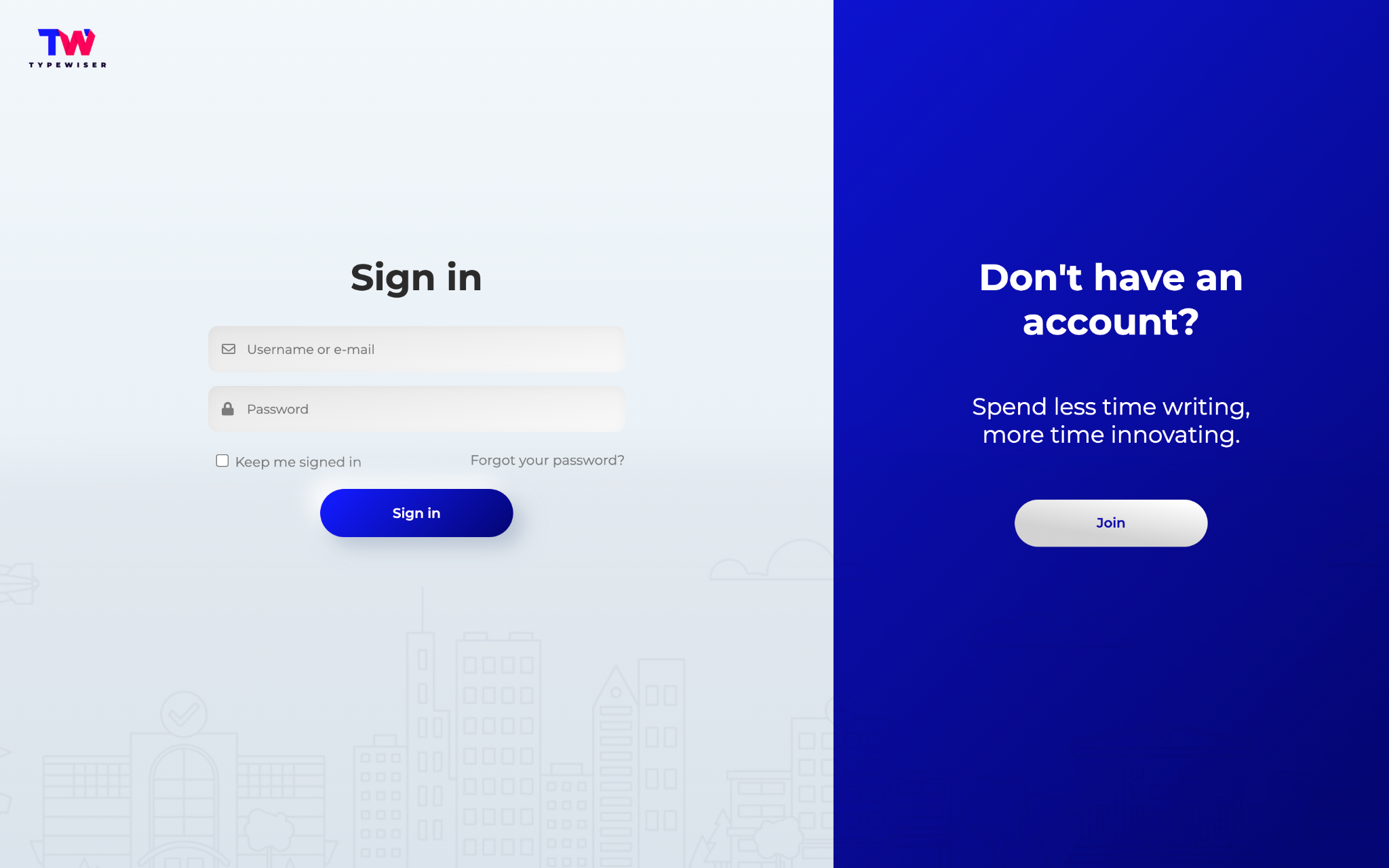
Open the Typewiser sign-up page and select the option to create a new account.
-
Enter your email address.
-
Set a password. You can type your own or accept the strong password Typewiser suggests.
-
Read and accept the Terms of Use and the Privacy Policy.
-
You will receive an email confirming the activation of your account.
How to sign in
Sign in whenever you come back to Typewiser to continue your work.
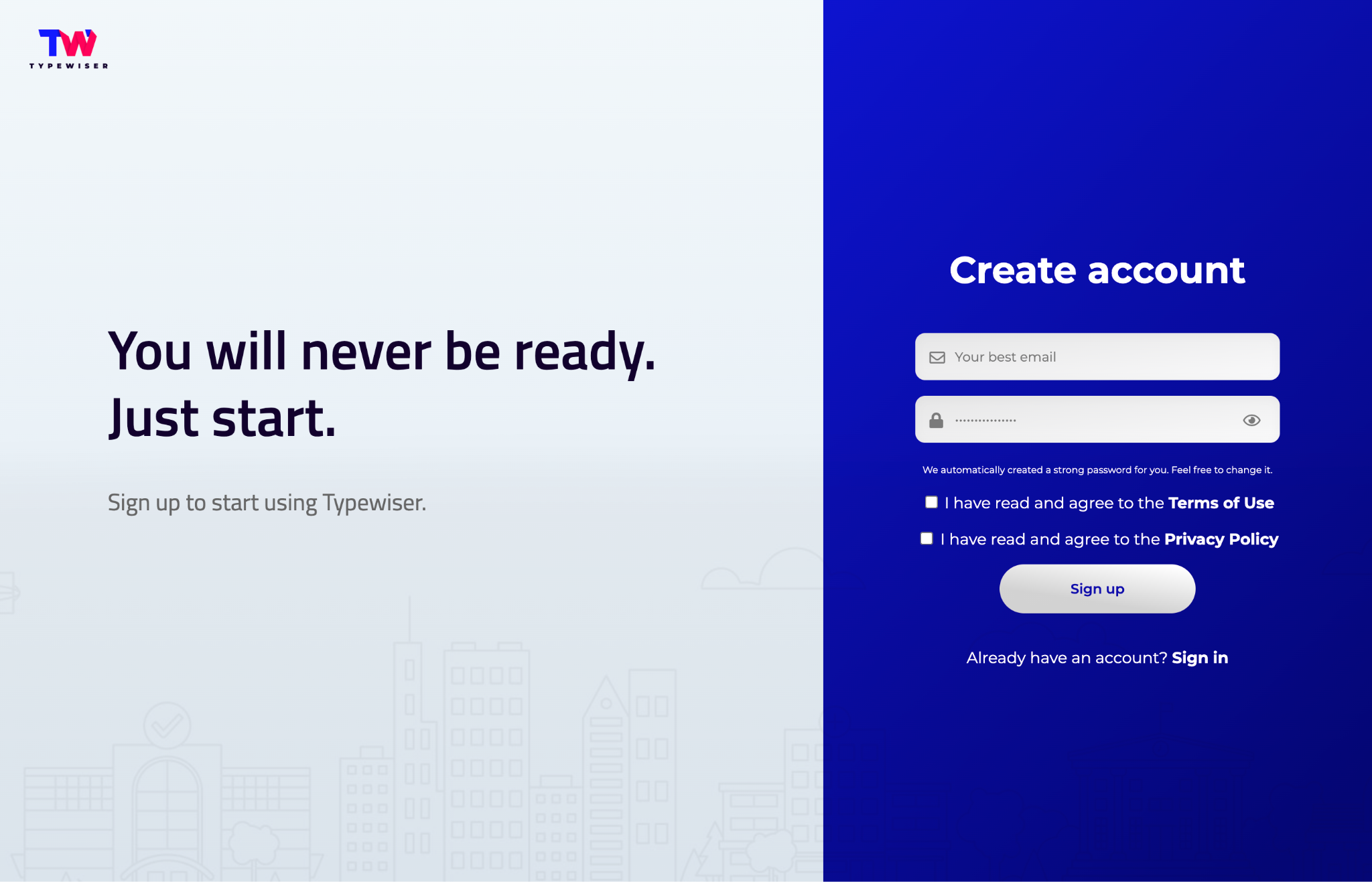
- Open the Typewiser sign-in page.
- Enter your email and password.
- To stay signed in on your device, select the Keep me signed in option.
- Select Sign in.
Reset or change a password
Reset a forgotten password
-
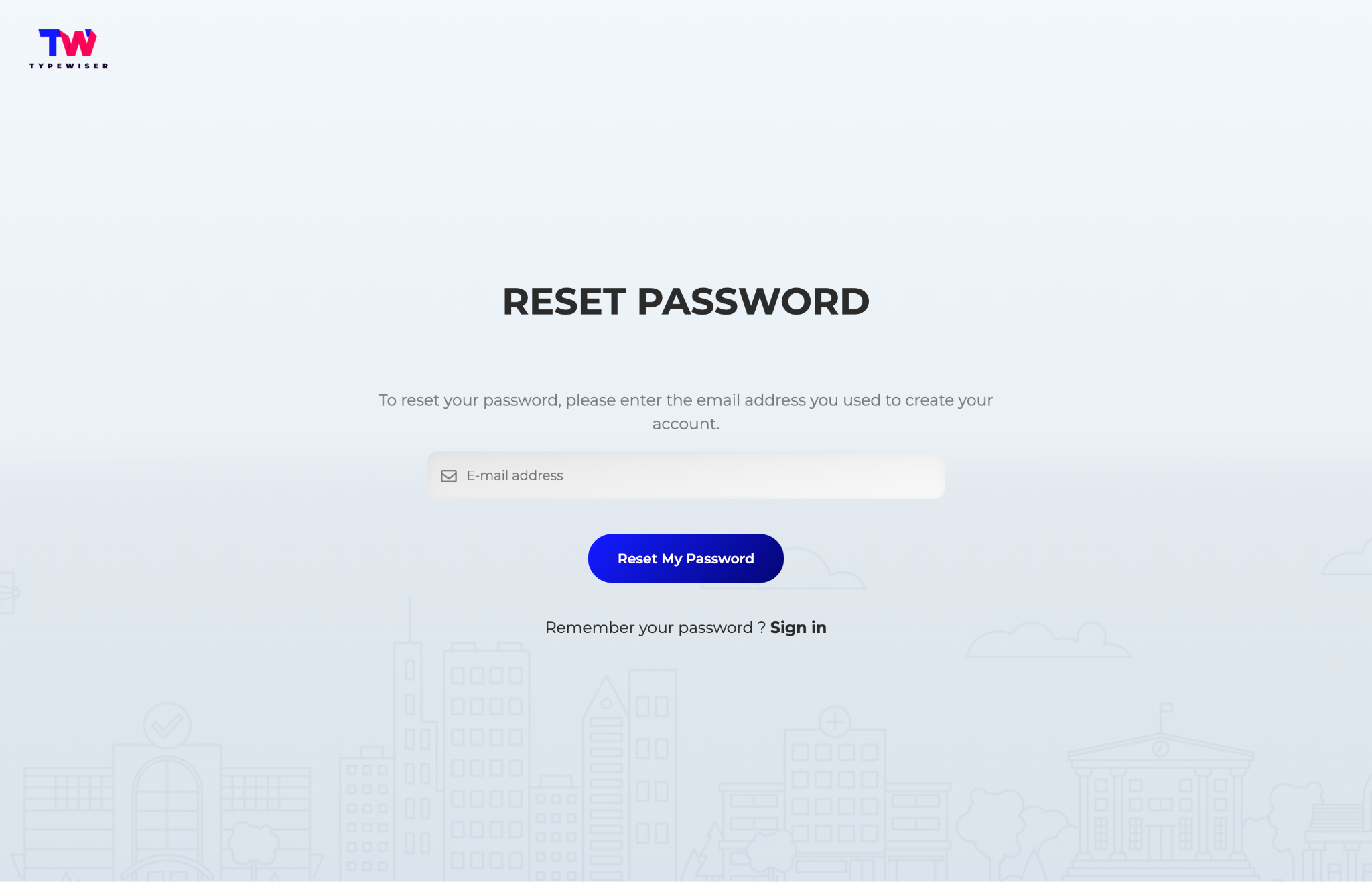
On the sign-in page, select Forgot your password?.
-
Enter the email address for your account and click on Reset My Password.
-
Typewiser sends a reset message to that email.
-
Follow the message to set a new password.
Change a password
- Open
 Settings.
- Go to your profile settings.
- Select change-password.
- Enter the email address for your account.
- Typewiser sends a reset message to that email.
- Follow the message to set a new password.
Set up a profile
-
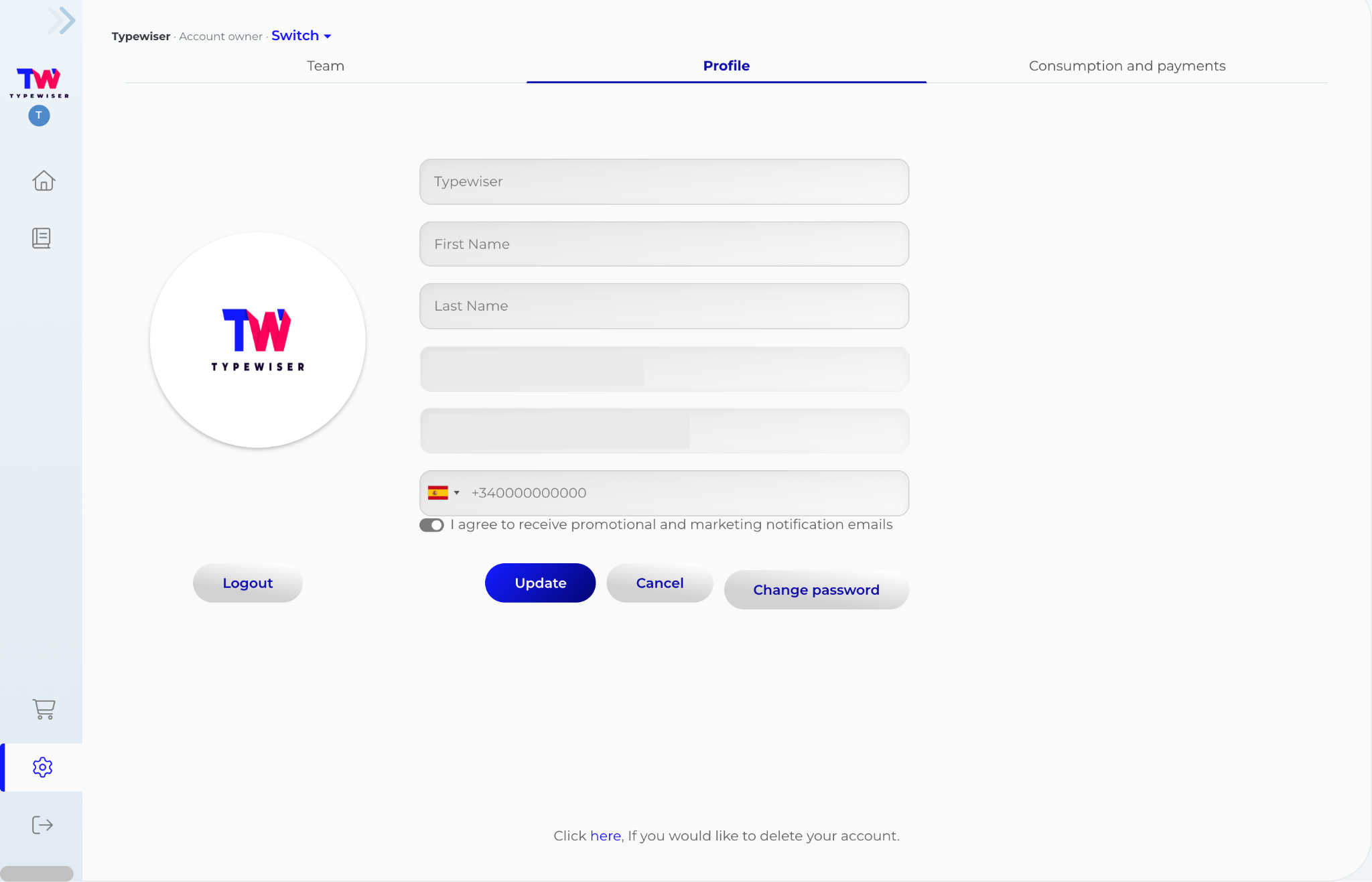
Once logged in, open
Settings from the Navigation bar of your Typewiser dashboard. -
Select Profile.
-
Click Update and customise the profile with name, phone number and a picture if you want.
-
Save.
Create your team
There are two ways to bring someone into your work in Typewiser.
Invite a collaborator to a project. For one-off or occasional help on a single proposal. You can do this at any time, on any plan. The collaborator works only inside the project you share with them. They do not join your organisation and they do not take a seat if you have purchased them. See more here.
Invite someone to join your organisation. For the people you work with regularly. This builds a team. It requires the Professional plan, and each member takes a seat. Members can share all of your projects, and work alongside you taking advantage of all capabilities of the subscription. Read more on how to purchase and manage seats.
How to invite team members
-
Open
Settings and go to Team. -
Click on + to start a new invitation.
-
Enter the member's email address. If the person already uses Typewiser, use the email they registered with, so the invitation links to their existing account.
-
Send the invitation.
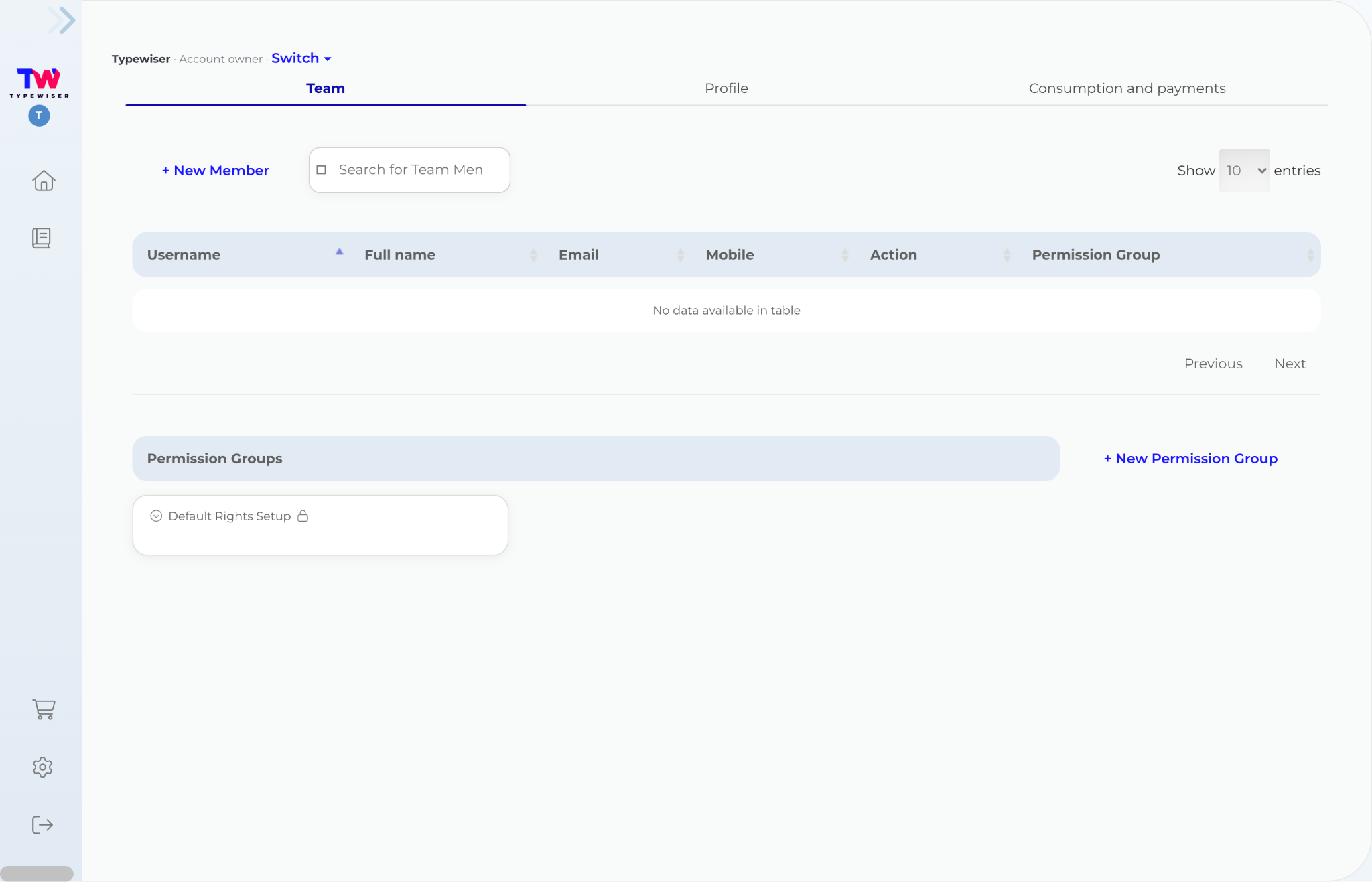
Organise access with groups
Use Groups to assign the same rights to multiple people at once. A group is a collection of members who share identical permissions, allowing you to create a group for users with similar access needs and place them into it.
Create a group
-
Open
Settings and go to Team. -
Click on + near Group to add a new group.
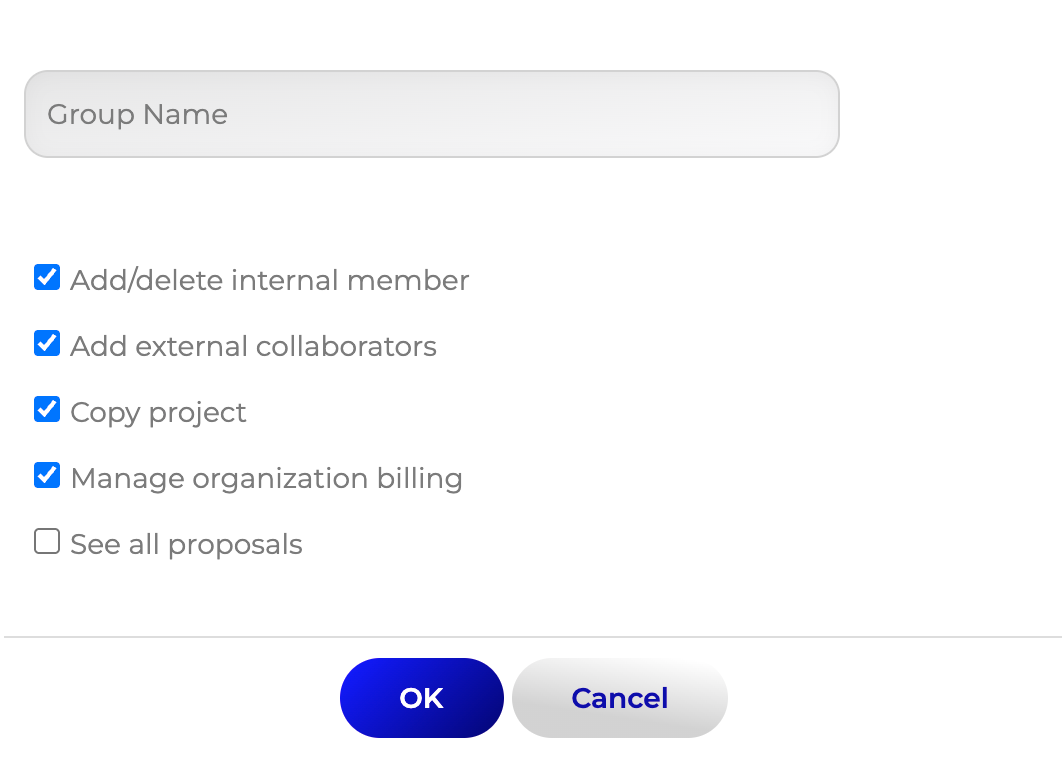
-
Give the group a name.
-
Set the rights the group should share.
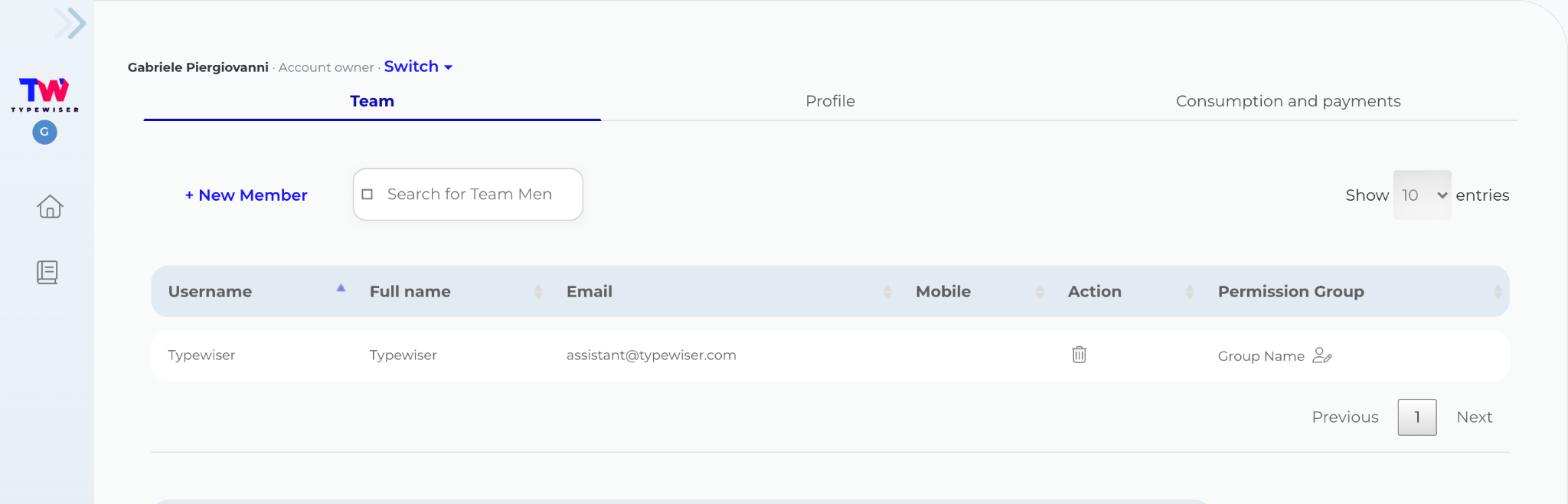
-
Allocate each member to the relevant group.
Join a team
If someone invites you to collaborate, you will receive an email with the invitation. From that email, you can reach Typewiser to either sign in or create an account.
- Open the invitation and follow it into Typewiser.
- If you already have a Typewiser account, sign in.
- If you do not have an account, create one (see “How to create an account” above).
Delete an account
- Open Settings.
- Go to your Profile settings.
- Click the link to Delete your account and follow the instructions.
When an account is deleted, all of the data associated with the account including active projects will be deleted.