DASHBOARD OVERVIEW
Typewiser dashboard
The Typewiser dashboard is the first screen you see after you sign in. It brings your proposals, your recent work and your account together in one place, so you can start something new or return to work in progress without moving through menus. This guide describes each part of the dashboard and what it lets you do.
The navigation bar
The navigation bar runs down the left of the screen and stays with you as you work. It is how you move between the main areas of Typewiser. Select the icon for the item you want to navigate to.
 | User/Organisation | Choose the organisation you are working in. |
 | Home - Grants Library | Returns you to the dashboard from anywhere in Typewiser, leading to the current grants in preparation. |
 | Plans | Opens the subscription plans available and the status of your active plans. From here you can modify plans, purchase seats, control remaining AI consumption and set limits. |
 | Continue last document | Available when returning to the dashboard after opening a document. It reopens the last one you had open. |
 | AI Consumption | Opens consumption tracking for your projects. The coffee cup is also an active icon that steams when Typewiser is  working. |
 | Ready indicator | Shows a tick when Typewiser is ready for your next step. |
 | Team & Profile | Opens the window dedicated to Team and Profile settings. |
 | Sign out | Signs you out of Typewiser. |
In Typewiser, a user can be associated with multiple organisations. The dashboard displays the projects and plans corresponding to the organisation you are currently active in. Each organisation serves as a distinct workspace within the platform. To access the active plans and projects tied to a different organisation, switch your workspace location.
The central body
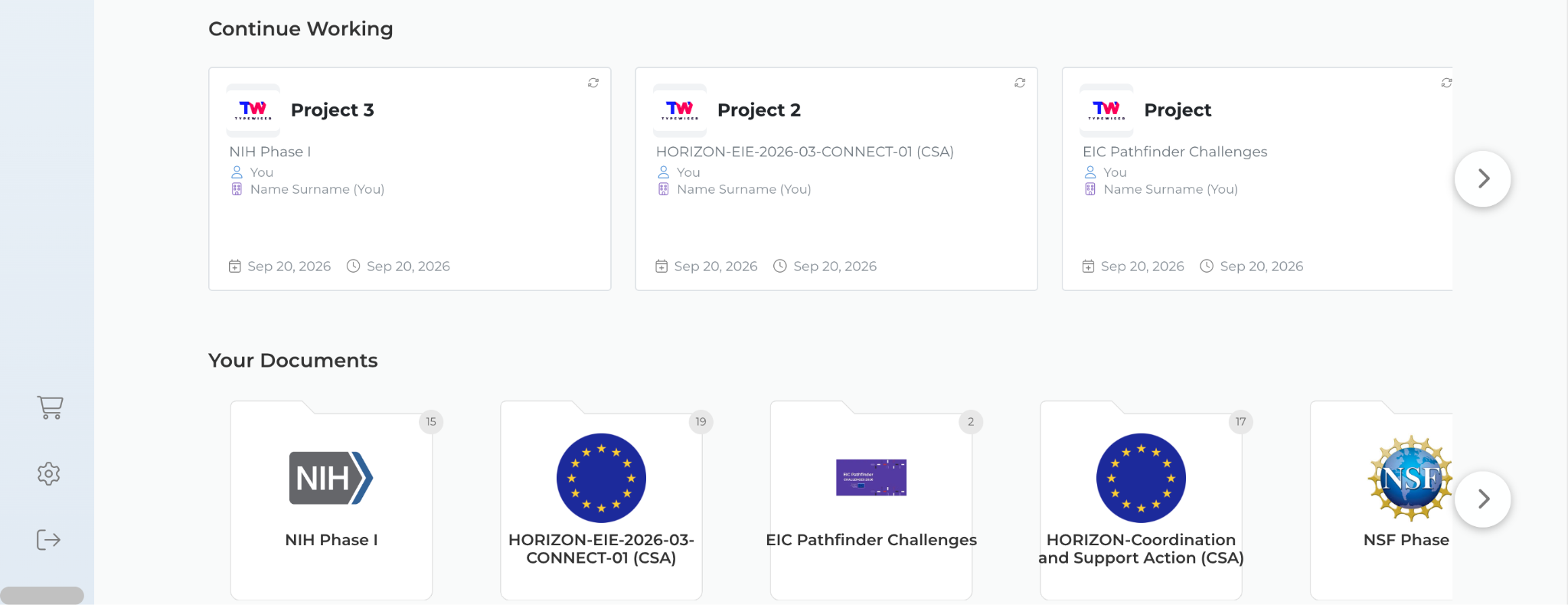
The central body of the dashboard is your primary workspace in Typewiser, organised into three sections to streamline your workflow. You can start a new proposal using the quick-access cards at the top, jump back into your most recent projects in the "Continue working" section, or browse and manage your existing projects organised by programme in "Your documents".
-
Start a new application. Click the Create button to start a new proposal. You select the programme you are applying to, and Typewiser sets up the matching template.
-
Continue working. Lists the projects you opened most recently, so you can return to active work in one step. Select a project to reopen it.
-
Your documents. All your projects are grouped into folders, one for each programme you are working with. A number on each folder tells you how many projects it holds. Open a folder to see the projects inside it.
Notifications
The  bell icon at the top right of the dashboard opens the notifications menu, where Typewiser keeps you informed about your team and your projects. Notifications include being invited to a team, team updates, changes to your privileges, and invitations to collaborate on a project.
Select a notification to expand it and read the details. Select Dismiss all to clear the list.
Project cards
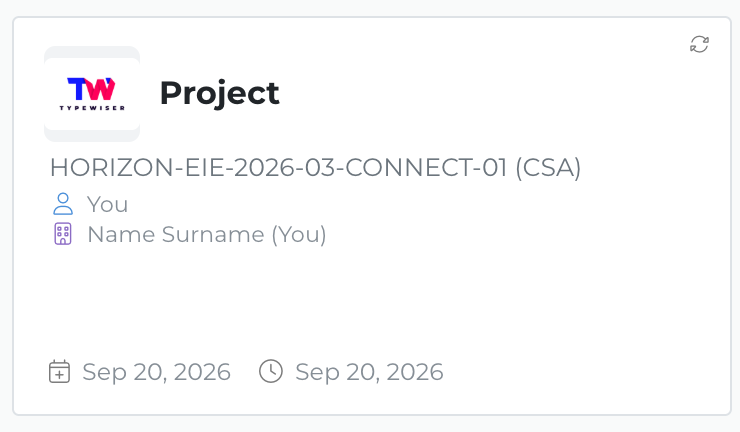
Every proposal you start is a project, and each project appears on the dashboard as a card. A card has two sides: a front that shows the project at a glance, and a back that lets you act on it.
The front of the card
The front shows the project logo, the project name, the programme, the organisation, the author, the date the project was generated, and the date it was last revised.
The back of the card
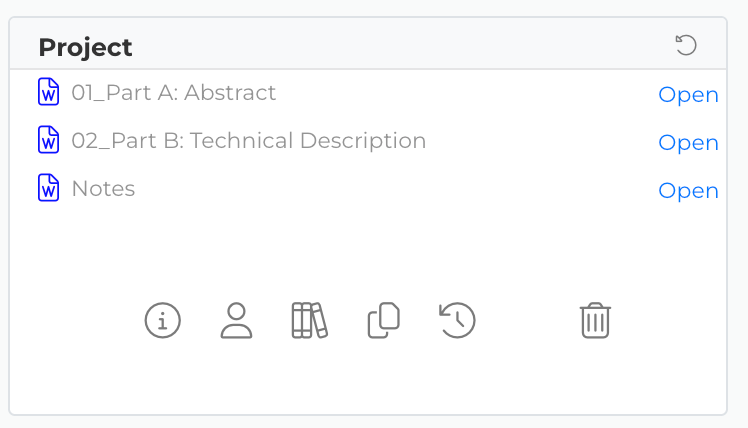
Flip the card to work with the project. The back lists the documents in the application package: select Open next to a document to work on it. A row of actions along the bottom lets you manage the project.
 | Edit info | Change the project name and logo. |
| Collaborators | Invite people to work with you on this project. |
 | Knowledge Library | Open the Knowledge Library for the document. |
 | Duplicate | Make a copy of the project. |
 | Revisions | See earlier versions of the document and restore one if you need to. |
 | Delete | Delete the project. |